Saving and organizing your Playground chats
How creations are saved, and how to rename, pin, search, and delete them.
Everything saves as you go
Each creation is its own chat and saves automatically. There is no save button. The chat takes its title from your first message and appears in the history list next to the conversation.
Selecting New chat starts a fresh creation and leaves the previous one in your history.
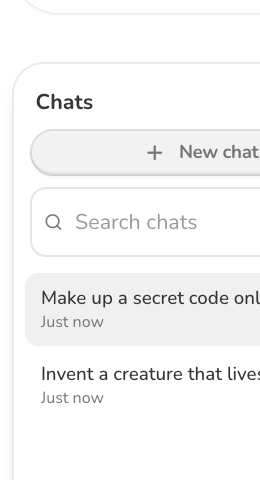
Finding a past creation
The history list shows your chats with the most recent first. On a phone, use the menu button above the chat to slide the list in.
- Load older chats at the bottom of the list brings in more history.
- Search matches chat titles as well as the words inside your messages. Type at least two characters. Search only ever looks at your own chats.
Opening a chat also updates the page address, so you can bookmark a creation you want to return to later.
Renaming and pinning
Each row in the history list has actions for renaming and pinning:
- Rename replaces the automatic title with your own, up to 120 characters.
- Pin holds a chat at the top of the list. You can pin up to 10 chats at a time, so unpin something if you have reached the limit.
Deleting a chat
Delete removes a chat from your history and asks you to confirm first. An undo option then appears in the list for about eight seconds in case you change your mind. After the undo expires, the chat stays hidden from you and is erased for good roughly 30 days later.
How long chats are kept
A Playground chat is kept for 12 months after its most recent message, then deleted automatically. If you want a creation you are proud of, copy it out before then using the copy button on a message.
For what is stored and how parents can review it, see Playground safety and privacy.